Journal · Brand
Canva can hide generative AI and keep Background Remover
Canva's new Free and Pro controls let you hide supported generative tools while keeping assistive editing tools, with existing plan limits and a gradual rollout.
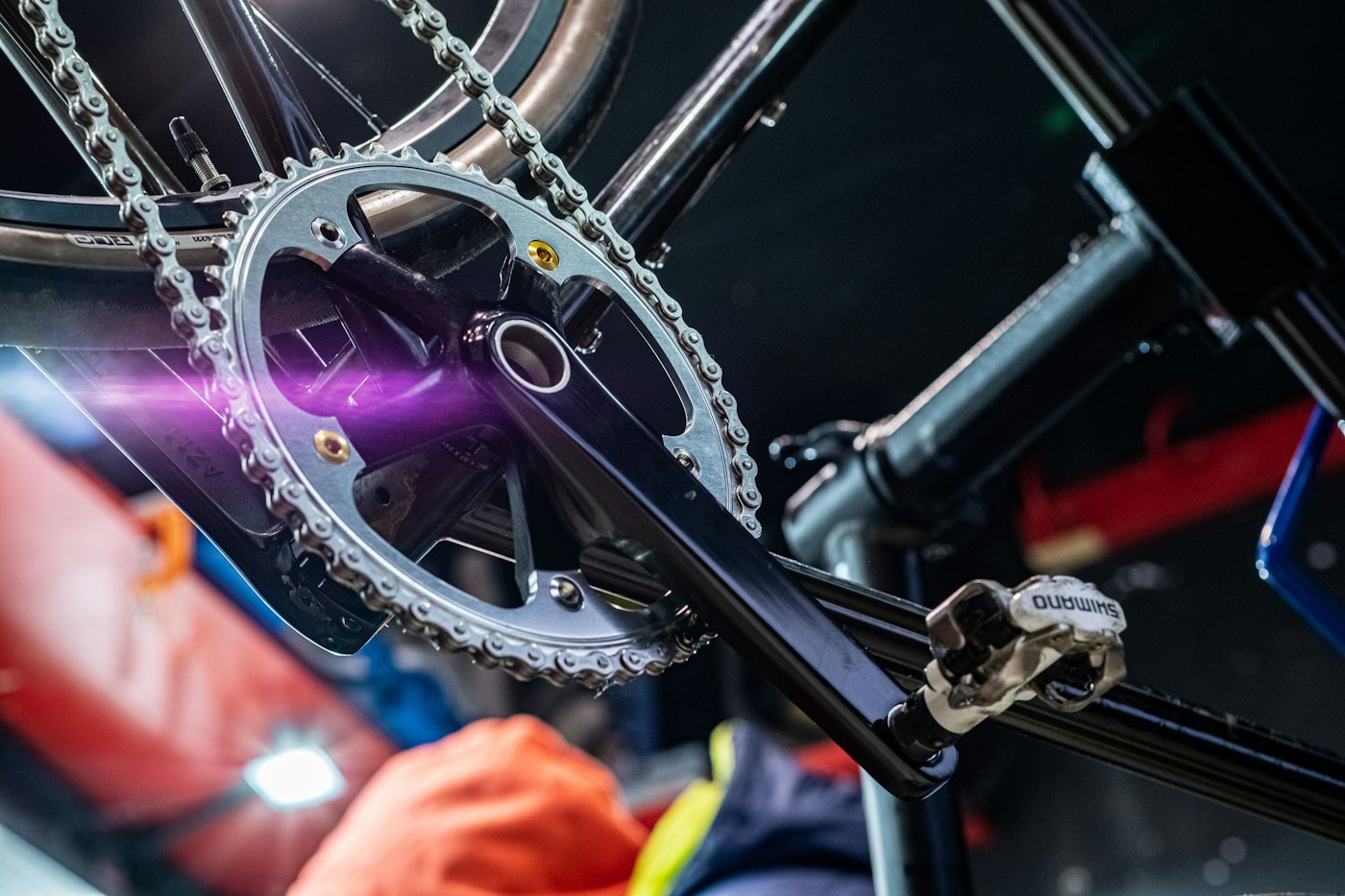
I want to see the scuff on a used bike before I drive across town to buy it. For an independent bike shop in Irvington, I'd make a winter sale card with a photo of the exact bicycle in stock, worn grips included.
Canva announced new AI Controls on November 19, 2026. Free and Pro users can switch off supported generative features. Canva leaves assistive tools such as Background Remover outside that switch, with existing plan limits. Generative tools create or change content from instructions; background removal helps you cut out a subject you already photographed.
If you use Canva to arrange your own photos and prices, try that switch. You can keep working with the product in front of you and spend your time on the layout.
How do I turn off generative AI in Canva?
Open your profile icon, choose Settings, then Permissions under Controls and permissions. Turn Enable generative AI features off. Canva's account-control instructions say the rollout is gradual, so check again later if you don't see it yet.
You can turn the features back on when you want them. Expect to lose access to supported generators such as Magic Write and Magic Edit while the switch is off. Canva keeps Background Remover and Magic Grab available, subject to your plan's access and allowances.
The new controls cost nothing extra on Free or Pro. Background Remover has separate access limits. Canva lists it with paid plans in its Background Remover help page; check what your account includes before planning a batch of cutouts.
I would try one bicycle photo before changing a whole catalog. Start with enough room around both wheels, then put the cutout on a plain background. Give the price its own text box so you can change $275 to $250 without editing the photograph.
Inspect the spokes and brake cables after removing the background. Restore any missing bits with the tool's Restore brush, or keep the original background if you can't get a clean edge. I'd rather see a workshop wall than half a brake cable.
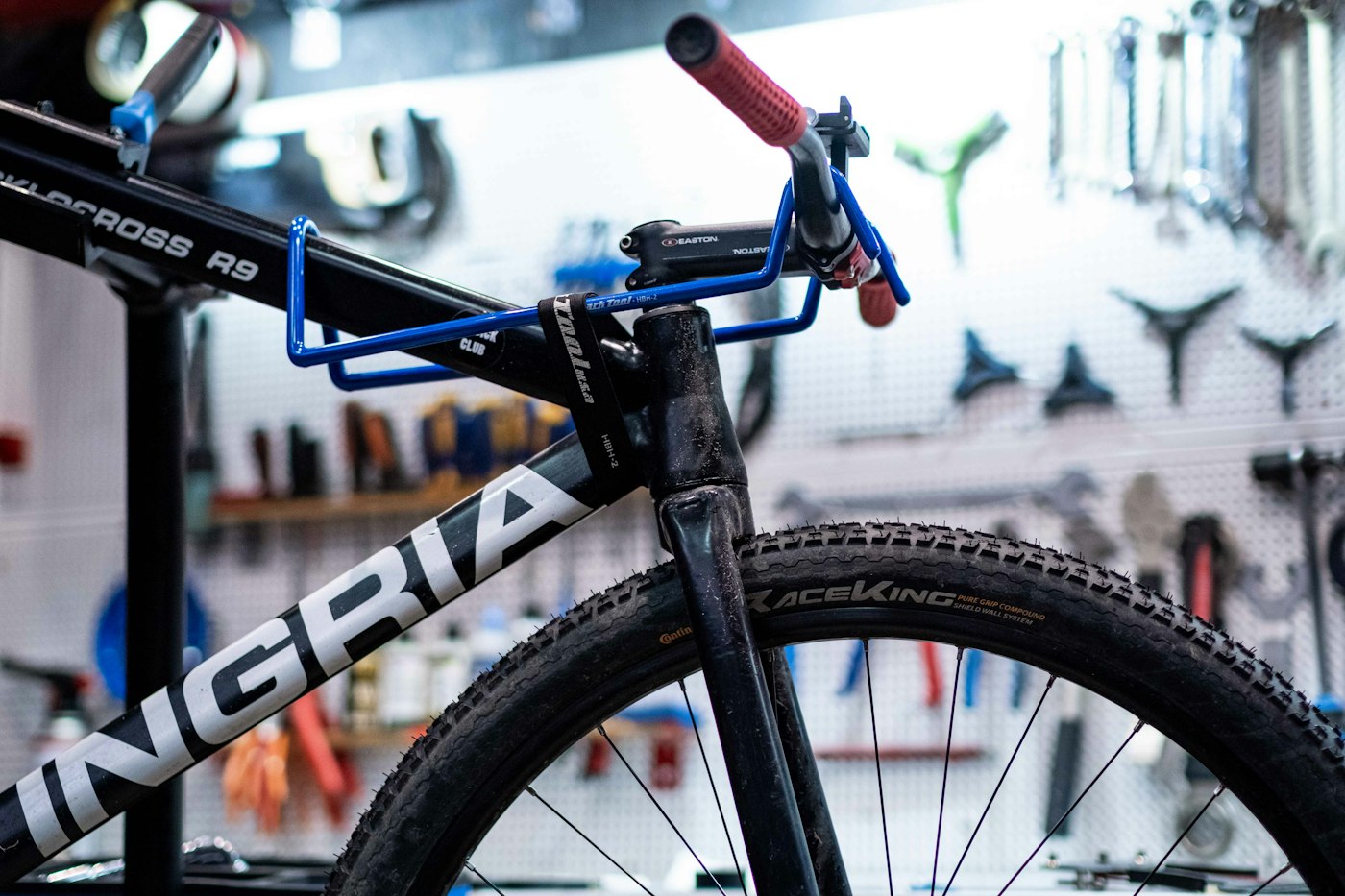
Photo: Anton Savinov / Unsplash, a repair shop in Moscow.
My guide to photographing your shop with a phone covers choosing light and a simpler background before editing. Move the cardboard box out of the frame while you're there. You may save yourself the cutout work.
Can I see fewer AI images in Canva's library?
Use the separate library setting: Profile, then Your account, then AI personalization. Turn AI-generated content off. Canva says you'll see fewer tagged AI templates and elements in search and recommendations; some can still appear.
That preference applies to your account. It leaves content you already added to designs in place, and it doesn't change searches through your own uploads. If you reuse last month's sale card, inspect its existing pictures yourself.
For a Westfield brewery, I'd photograph the bottle customers can buy this week. Keep its label readable, then place the release date beside it. I love the little beads of condensation on brown glass, but I'd leave enough light on the paper to read the beer's name.
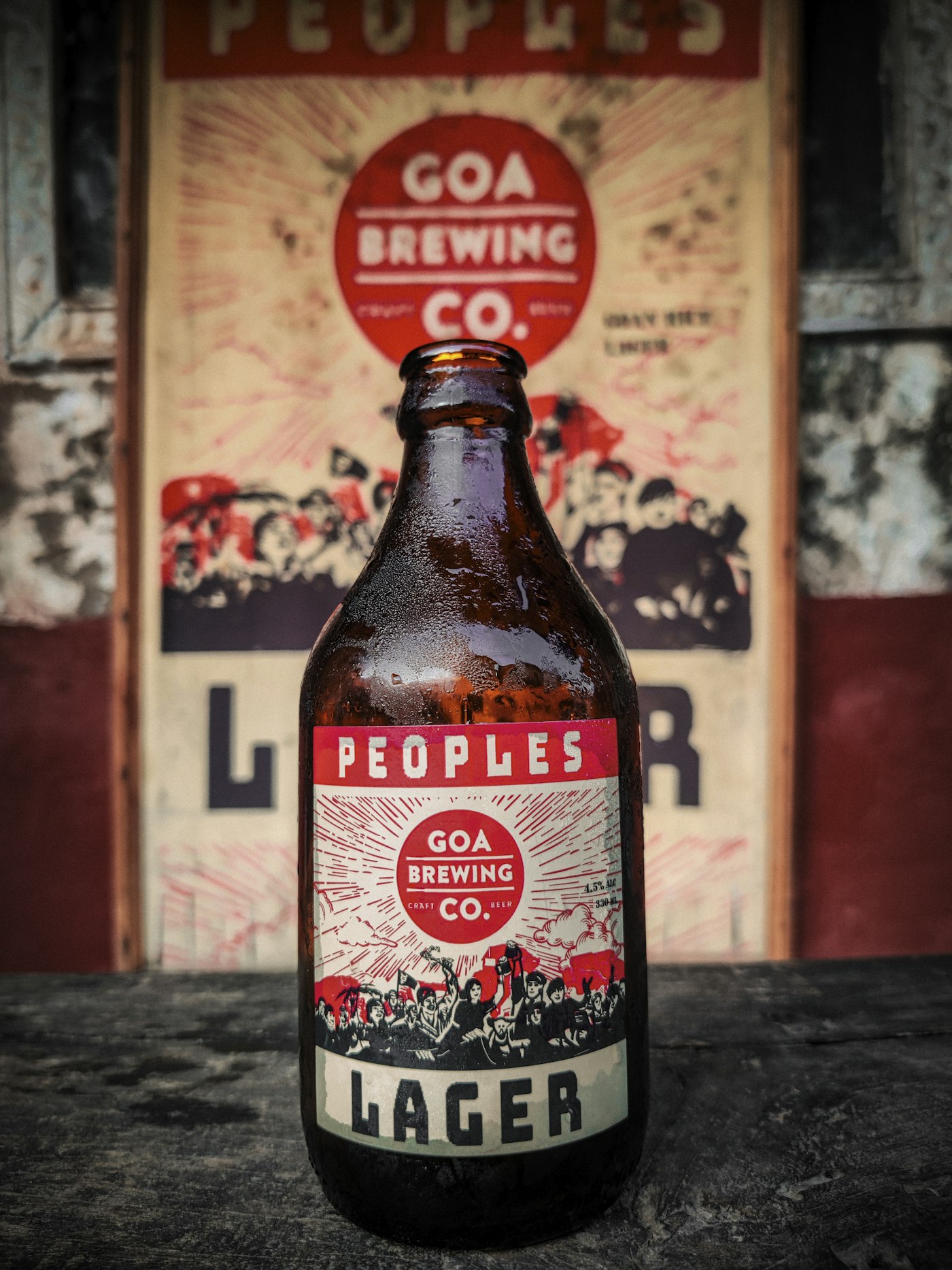
Photo: viswa teja / Unsplash, a Goa Brewing Co. bottle photographed in Goa.
You might keep the brewery's counter in the photo, especially if regulars recognize it. On a small website card, a plain background might give you more room for the details. Compare both at the size your customer will see.
Will Background Remover add an AI label?
Canva says Background Remover alone doesn't add its AI-generated content metadata, the information stored with a file that other services can read. That statement concerns Canva's tool; it isn't a guarantee about how another platform will label a finished design.
Keep a copy of your original photo. If you added an AI-generated library asset elsewhere in the layout, switching off the library preference doesn't remove that asset. Check the whole card before exporting.
Before you export a product card, compare the edited picture with the thing a customer will take home.
Use the same check on the website. In my piece on planning a banner and poster crop, I asked owners to decide the finished shape first. A real photograph needs that planning too: leave space for the bike's wheels and put the booking or purchase link where someone can tap it.
If your website crops off the item or buries the purchase details, bring the original photo to a conversation about Luminest's website services. We can work on that page with the actual product and its dimensions in view.
Open the exported card on your phone before you go back to the counter. If you have to pinch to read the beer's name, give the bottle more room.
Sources
| # | Source | What it backed up |
|---|---|---|
| 1 | Canva: Introducing AI Controls | The new Free and Pro controls, no added charge, and continued assistive-tool access. |
| 2 | Canva: Manage AI features | Settings paths, gradual rollout, account scope, and library-filter limits. |
| 3 | Canva: Remove photo and video backgrounds | Plan access, restoring cutout details, and Canva's AI metadata explanation. |
| 4 | Engadget: Canva's generative AI controls | The November 19, 2026 announcement date. |