Journal · Brand
Acrobat can turn a PDF into a flyer. Keep the small print readable.
Adobe's new Acrobat design feature can turn a service PDF into a flyer; keep prices and conditions together, then check a printed proof before handing it out.
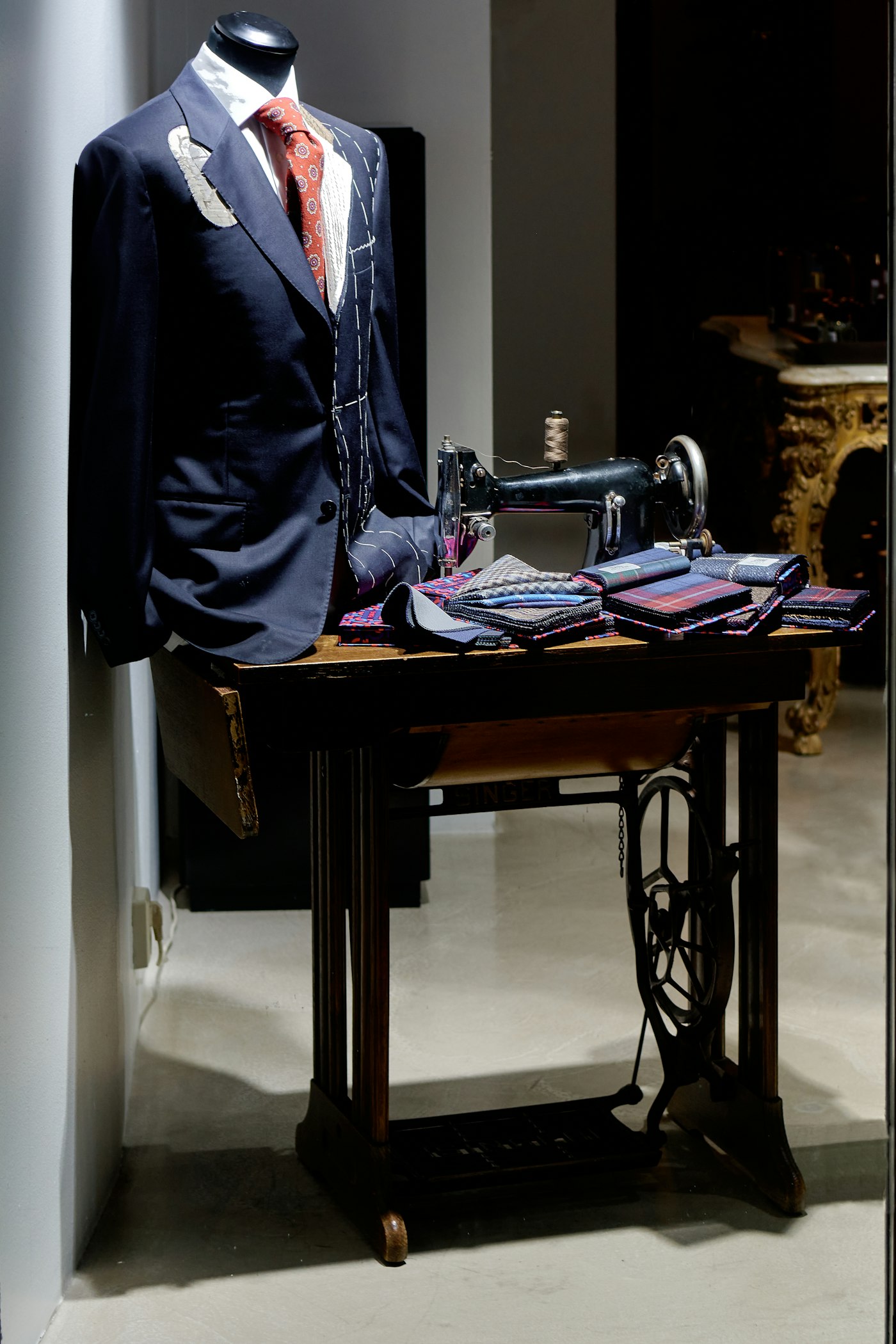
A coat-alteration flyer needs room for the words "bring the coat."
Picture a tailor in Brownsburg putting a handout beside the fitting-room mirror. A beautiful photograph might get someone to pick it up. The customer also needs to know what to bring and how to book.
On October 14, 2026, Adobe announced a feature in Acrobat that uses Adobe Express AI Assistant, in beta, to turn document content into a one-page design. You can start with a service PDF instead of an empty page.
I would try it on one handout. Keep the practical details close to the offer, then print a proof. You can enjoy picking the colors after you have made room for the information your customer needs.
What can Acrobat turn into a flyer?
Adobe describes designs built from a document, a PDF Space, or a chat summary. PDF Space is its place for collecting documents together. You can review suggested layouts and continue editing in Adobe Express.
For a shop, I would start with an existing public price sheet. Give the tool a small assignment, such as promoting coat fittings, instead of asking it to squeeze your entire alterations business onto one page.
Adobe's October 13 how-to describes access for free and paid users on desktop and web, in English, with an Adobe sign-in. It says the Reader desktop rollout is still underway. Adobe's separate availability page names paid subscriptions, so its pages do not give the same account guidance.
Check your existing account before buying anything for this feature. Adobe describes fair-use limits and reserves the option to introduce credit charges later.
Which details belong beside the price?
Use this invented tailor example: coat alterations start at $45, and the tailor confirms the quote after examining the garment. A customer books a fitting and brings the coat, wearing the layers they expect to wear underneath.
I would put "Coat alterations from $45" near the top. Below it, I would explain the fitting and quote. The preparation instructions belong beside the booking details, where someone can find them without turning the paper over.
Tiny pale type would spoil this lovely little handout. You would have to explain the same conditions at the counter, and the customer might have planned around a price you never promised.
Keep the conditions beside the offer, in type you can read while holding the flyer at arm's length.
For a second example, imagine a yoga studio in Westfield offering a $39 introductory pass. The owner allows new students three visits within 14 days of their first class. Those are example terms, not a local price survey.
Put the visit limit and expiry beside "$39." Give the customer one clear way to reserve a place. A large photograph of the studio could help them picture their first visit, but leave enough space for the pass details.

I would use the shop's existing typeface and colors for either flyer. If those choices still change with each promotion, our guide to the smallest useful brand kit gives you a place to start. You should be able to set next month's offer without choosing a new identity.
How do you check the design before printing?
Open the PDF in Acrobat and select AI Assistant, following Adobe's how-to. Ask for a one-page flyer with the service name as the main heading. Specify the conditions that must remain beside the price.
Review the words against your original sheet before adjusting the decoration. Adobe itself tells users to check names and numbers in generated designs. Read the booking instructions aloud; you may notice an omitted step when you try to explain it.
Make one editing request at a time. Adobe says Acrobat applies only the first change when you put several requests in one message. Ask to enlarge the conditions, check the result, then ask for the next adjustment. For more detailed work, choose "Edit in Adobe Express."
Print one copy at the size you intend to hand out. An enlarged preview on a laptop makes small text easier to read than it will be on the counter.

Hold that proof at arm's length. Read the condition below the price, then find the booking instruction. Ask a coworker to do the same without pointing at either line. If they lean in to decipher it, enlarge the type or remove a decorative element.
Keep the lettering dark enough to read against its background. I covered the temptation to use faint type in our piece on light gray text. A soft color can work in a border while you give the instructions stronger contrast.
Check the page customers reach after scanning a booking code or typing the address, too. They should find the same offer there. Matching that page to the handout is part of the website work we describe on our services page.
Leave the proof beside the register for an afternoon. You may spot the awkward line break while waiting for a receipt, with the paper in your hand and the screen closed.
Sources
| # | Source | What it backed up |
|---|---|---|
| 1 | Adobe's October 14, 2026 announcement | The beta announcement, supported starting material, editing options, and checks for generated details. |
| 2 | Create designs with Adobe Express in Acrobat | The October 13 instructions, account and language guidance, Reader rollout, and one-change-at-a-time behavior. |
| 3 | Adobe Express designs in Acrobat | The separate subscription guidance, fair-use limits, and possible future credit charges. |
| 4 | Luminest: the smallest brand kit | Related guidance on keeping a shop's visual choices consistent. |
| 5 | Luminest: light gray text | Related reading on choosing readable text colors. |