Journal · Brand
Figma Specs: keep your website decisions beside the design
With Figma's new Specs documents, designers can keep written decisions beside a website draft; ask for dated approval notes to record the choices you agreed on.

"We approved the rust-colored chair photo on Tuesday."
Picture an upholstery studio in Brownsburg opening the next website draft and finding the beige chair back in place. The owner remembers the conversation; the developer needs a record of the choice.
On October 15, 2026, Figma announced Specs, shared documents that sit on the same canvas as the design. You can put written decisions beside the draft they describe.
Ask your designer for one short approval note next to the current draft, with your name and the review date. You can use that habit with the tools you already have.
What changed with Figma Specs?
Designers use Figma to lay out website screens before a developer builds them. With Specs, they can keep an editable document on that work surface and embed parts of the design inside it. You and your designer can discuss the written details alongside the visual work.
Figma began rolling out Specs in open beta on October 15. Its help guide lists supported plans and says creating or editing a Spec requires edit access to the file. Your designer may still be waiting for access. Ask them to handle the document and check how they want you to review it before buying a seat.
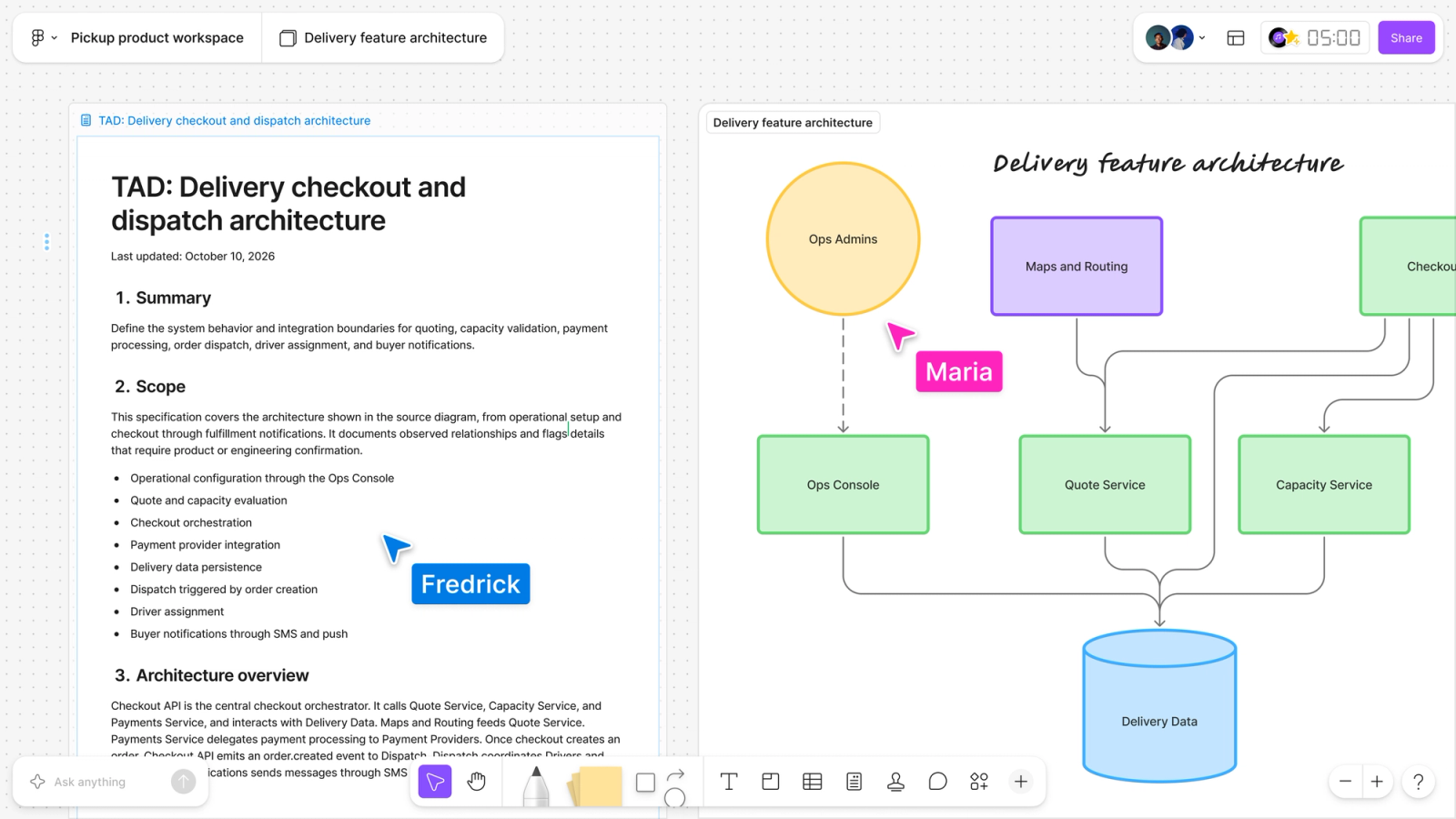
Figma's announcement shows a written specification beside the diagram it describes. Image: Figma.
You can write and edit the document by hand without using AI credits, according to Figma's guide. For a small website project, I would start with a few owner-approved sentences.
You and your designer write the approval record. Specs gives you a place to keep it; you still decide which choices you have approved.
What should you record beside a website draft?
Start with a decision your developer could misunderstand. Name the page and the part of the design you mean. Then write the exact choice you agreed on.
For that imagined upholstery studio, I would attach the approved chair photograph and write: "Use chair-rust-02 on the homepage. Keep the full armrest in the mobile crop so customers can see the piping." A developer can check the filename and the crop against that note.
"Make it warmer" still leaves room for interpretation. You might mean the photograph, the background color or the wording. Point to the part you want to change and explain what you want the customer to notice.
For an independent dog groomer in Noblesville, the owner might approve "Request an appointment" as the button text. The receptionist still needs to confirm the time. Record that reason beside the button so someone revising the page understands why "Book now" would promise too much.
I covered the next screen in the piece on confirmation pages. Include the message after a request in your approval note too, so you and your developer agree on what the customer will read.
Use four small fields:
| Field | Example for the grooming page |
|---|---|
| Screen | Link to the named "Appointment request, October 17" draft screen. |
| Approved choice | Button says "Request an appointment." |
| Reason | Staff must confirm the time before the customer has a booking. |
| Checked by | Owner's name and the date they approved the wording. |
Keep a separate section for open questions. "Can we offer Saturday appointments?" stays there until the owner decides. A designer who reads it should know they still need an answer.

Do you need another tool to approve a website?
You can keep the same record in a shared document, with a link to the exact draft and a small image of the screen. Add each change with its approval date, and mark the old choice as replaced. You can then check both the current decision and how you reached it.
I would put the note beside the draft in Figma if the team already works there. For a project run through email, agree on one document everyone can open. You should be able to find the current approval without searching several conversations.
Write the approved choice beside the current design, with the date and the name of the person who checked it.
Continue to review the mobile draft on your own phone, and check the built site against your approval record before launch.
If you're comparing website services, ask who will record approvals and who will check them against the finished pages. Set aside a few minutes for that review in the project schedule.
Open the page your customers will use most. Pick one detail you care about and put the approved version beside it while you can still remember the conversation.
Sources
| # | Source | What it backed up |
|---|---|---|
| 1 | Figma: Introducing Specs | The October 15, 2026 announcement, documents on the canvas, embedded designs and the illustrated FigJam example. |
| 2 | Figma: Guide to Specs | Open beta rollout, supported plans, edit access requirements and writing without AI credits. |
| 3 | Luminest: The confirmation page nobody designs | Related guidance on the message customers read after submitting a request. |
| 4 | Luminest: Review the draft on your own phone | Related guidance on reviewing mobile designs and testing the built website. |