Journal · Brand
Affinity on iPad: keep the service sheet you can change
Affinity's new iPad app offers free core design tools for individuals; test one service sheet by changing a price, exporting a PDF, and reopening the editable file.

You tap the price on your service sheet, and the whole page moves.
Imagine a dog groomer in Carmel trying to change a bath price from $65 to $70 between appointments. She can move the picture of her price list around, but she cannot select the number. Somewhere, someone has the editable version.
Canva announced its combined Affinity iPad app on November 3, 2026. I would try it on that one sheet before moving a folder full of designs. Keep the working file, export a customer copy, then close and reopen the working file to check that you can make the next change.
What changed in Affinity for iPad?
Canva has brought photo editing and page layout into the same iPad app as its drawing tools. In yesterday's announcement, the company says individuals can use the core tools for free with a Canva account. Its optional Canva AI Studio tools require a premium account.
For an owner who already has a suitable iPad, that gives you another way to maintain a small printed document. You can adjust the photograph and the type in one project. You still have to learn the controls.
Affinity calls its working document an .af file. According to the product page and its file-format guidance, you can work on that file across desktop and iPad, then export a PDF for printing. The company also lists limitations when importing complex files from other design apps. I would test your own document before committing to a move.
Can you change prices in your existing file?
Start by tapping a line of text. Can you place a cursor inside the words, or do you select the entire page as one picture?
For our imagined groomer, I would keep “Bath and brush” as editable text and the dog photograph as a separate element. She can update the price while keeping the photograph in place. I like leaving a little extra room beside the amount, too, so a longer price does not push into the service description.

A small-engine repair shop in Speedway has a similar job. The owner might change “Mower tune-up” to “Snowblower service” for November. A longer service name needs room. Try that change on a copy and see whether you can adjust the line without moving the logo.
These are example tasks, not reports from local clients. You can use your own most frequent change as the test.
| File you have | What I would check |
|---|---|
| An Affinity working file | Open it and edit a price, then save a separate test copy. |
| A PDF from your designer | Check whether the text remains editable and whether the type looks right after import. |
| A JPG or PNG of the whole sheet | Ask for the original working document; plan to rebuild text if you only have the picture. |
I would keep your existing typeface and colors during this trial. Our guide to the smallest useful brand kit explains how to record those choices. You have enough to learn in a new app without choosing another shade of green.
How do you test one service sheet?
Set aside 20 minutes for a first attempt. That is a limit I would put on the experiment, not a promise about how fast you will learn Affinity.
- Find the working document. Duplicate it before editing. If you only have an exported picture, ask the person who designed it for the original and the names of the fonts.
- Make one ordinary change. Replace a price or a service name. Check that you can adjust that text without disturbing the photograph beside it.
- Save and reopen. Close the test document, open the saved copy, and edit the same line again. Write down where you saved it so a coworker can find it.
- Check the customer copy. Export a PDF and open it outside the design app. Compare it with the working document, then print a proof before ordering a batch.
For the proof, read the service conditions as well as the large price. I covered that check in the piece about turning a PDF into a flyer. Leave room for the words your customer needs, even if you have to shrink the photograph.
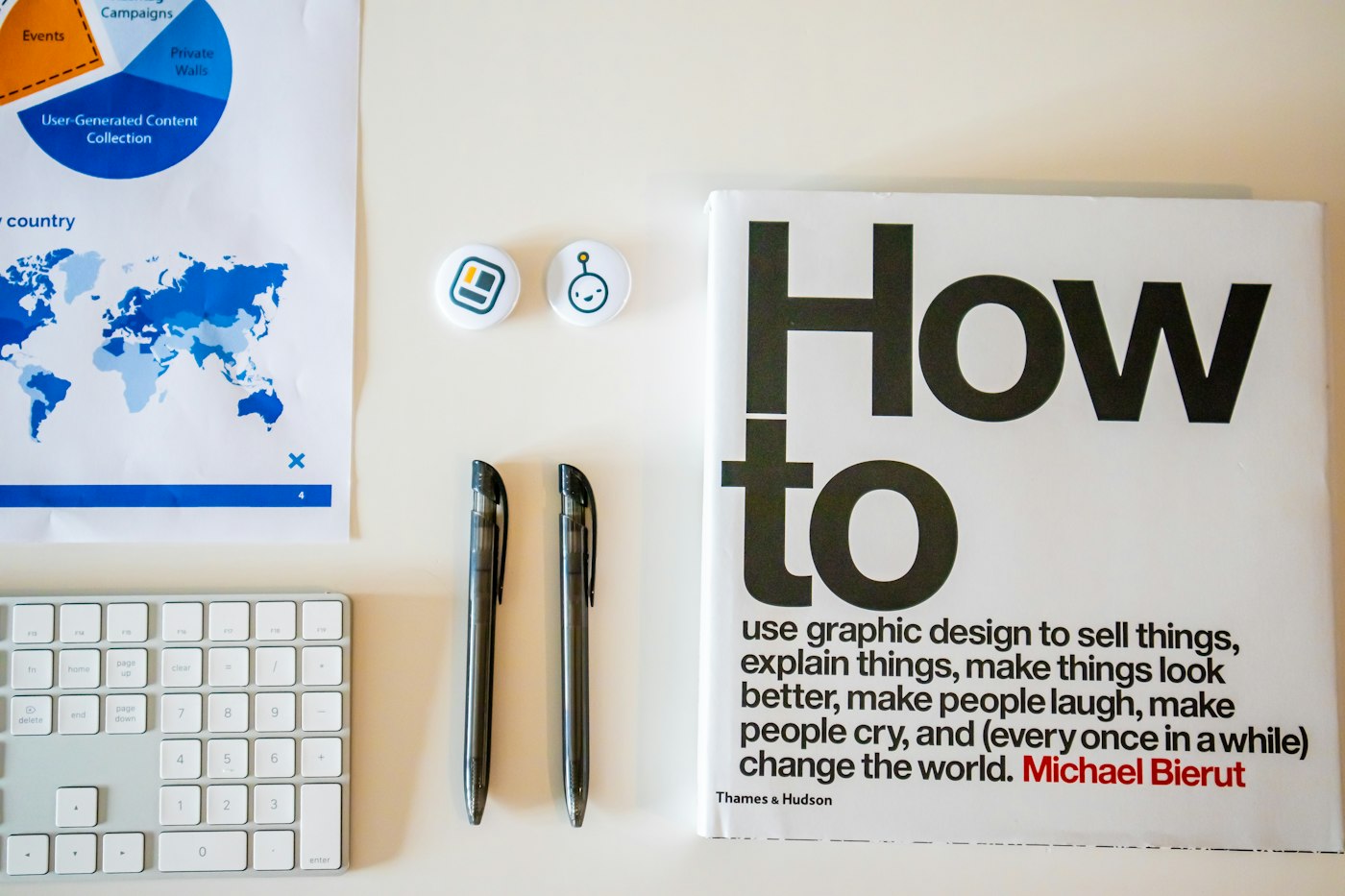
Before you move your service sheets into a new app, check that you can change one price and reopen the file.
If you spend the 20 minutes hunting for a font or the original artwork, ask your designer for a short handover. Have them show you the exact change you expect to make next month. You may prefer to pay for that help and keep using the app you know.
Update the price on your website when you approve the printed version. If you are discussing website work with Luminest, ask us to make those service details editable as page text. You should be able to update a price without uploading another picture of the sheet.
Leave the working file somewhere your Saturday opener can find it. That person may need to fix a line while you are washing a very impatient terrier.
Sources
| # | Source | What it backed up |
|---|---|---|
| 1 | Canva: Affinity for iPad | The November 3, 2026 announcement, combined tools, account requirement, and free core tools versus premium AI features. |
| 2 | Affinity for iPad: product details and FAQs | Working across devices with .af files, PDF export, and limits when importing complex documents from other apps. |
| 3 | Luminest: the smallest brand kit | Related guidance on keeping a shop's type and colors consistent. |
| 4 | Luminest: Acrobat PDF flyer checks | Related guidance on reviewing printed service details and conditions. |
| 5 | Suganth on Unsplash | Cover photograph of a hand using an Apple Pencil on an iPad. |
| 6 | Reba Spike on Unsplash | Grooming photograph used to illustrate the hypothetical service-sheet example. |
| 7 | Walls.io on Unsplash | Desk photograph showing a graphic design book and stationery. |