Journal · Engineering
How to leave five minutes between paid appointments in Google Calendar
To leave five minutes between paid sessions in Google Calendar, set buffer time on the appointment schedule and keep the appointment duration at the length you sell.
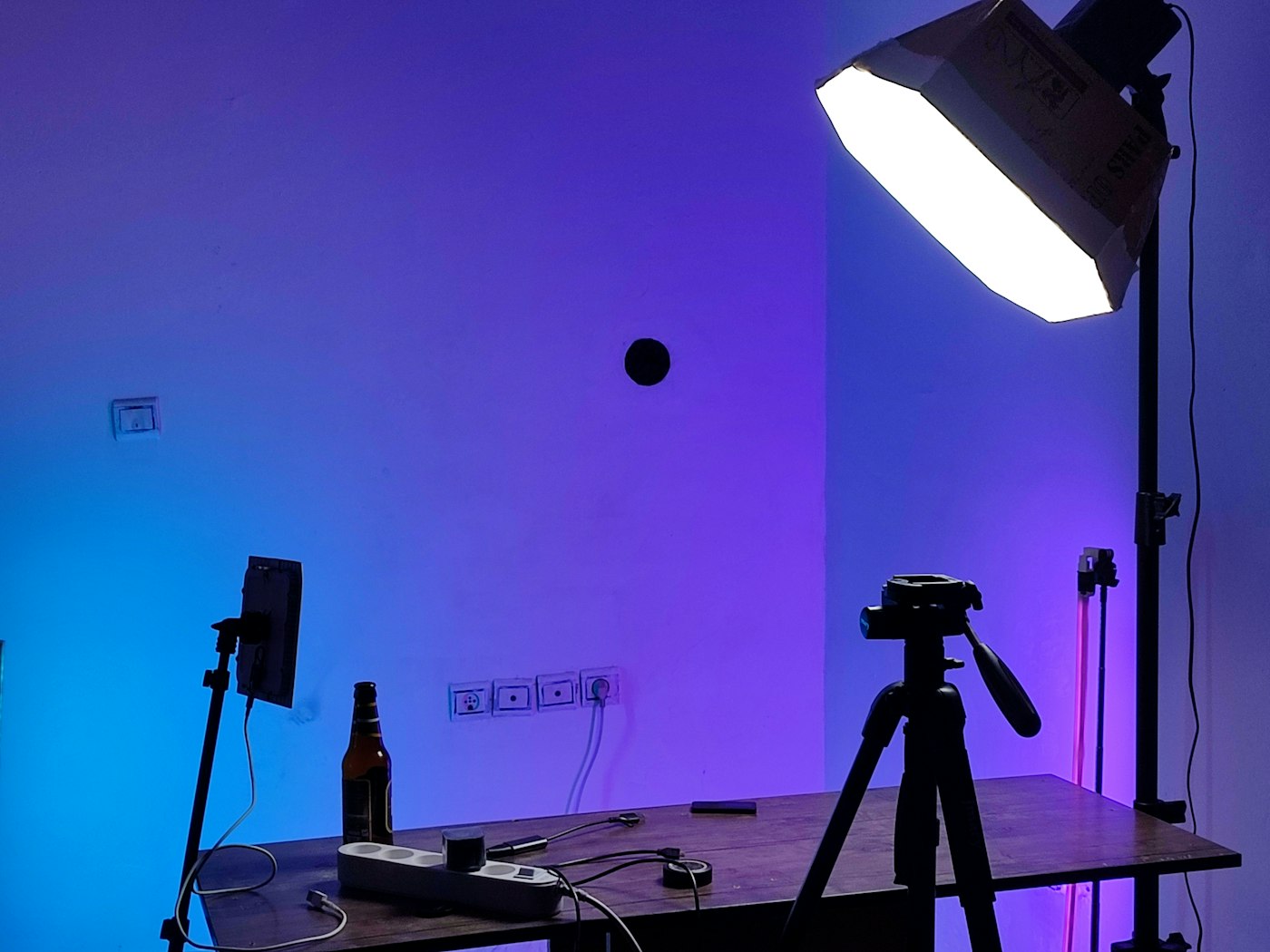
“Can we try one with my glasses off?” That's a good use of the last five minutes of a headshot session. If you run a portrait studio in Carmel and sell half an hour in front of the camera, I'd keep those five minutes for the person on the stool.
Google started rolling out a five-minute meeting buffer on November 16, 2026. A buffer is a gap on your calendar. Google gives you two places to put one. On a staff calendar, you can shorten new meetings. On the booking page your customers use, you can leave space between full-length appointments.
What does Google Calendar's new buffer do?
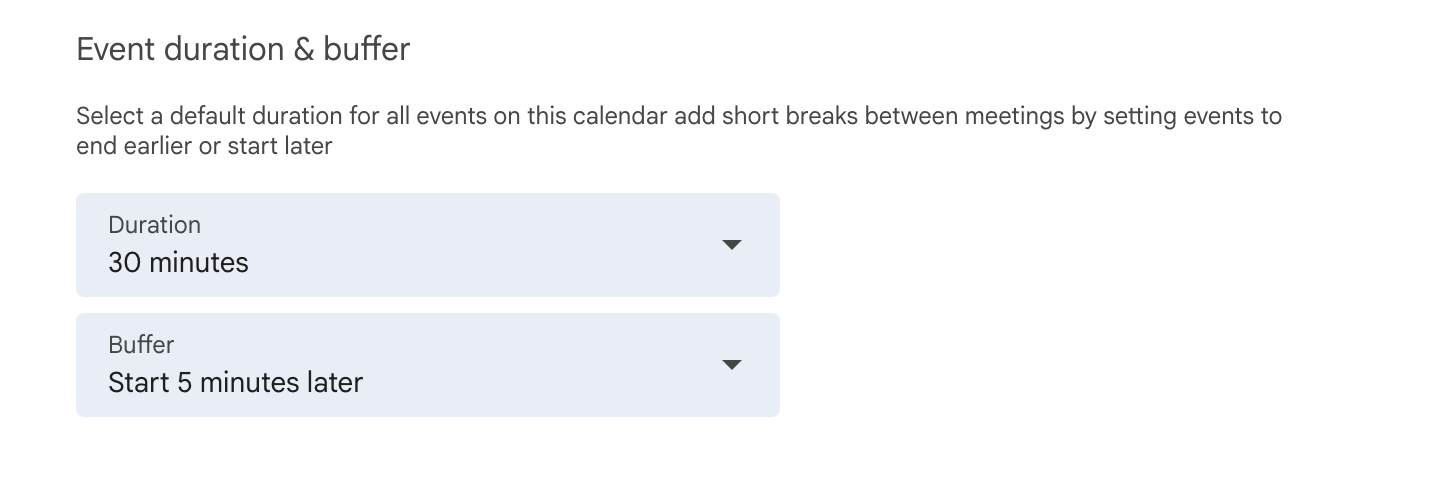
Say you and your assistant usually meet at 9 to go over the day's shots. You set your staff calendar to end meetings five minutes early. The next time you create a half-hour event at 9, the invitation says 9 to 9:25. You have time to put a fresh battery in the camera before the first client arrives. You can also choose a late start, which gives you 9:05 to 9:30.
On a computer, open Google Calendar's Settings. Under Settings for my calendars, choose the staff calendar, then Event duration & buffer. Choose which end of the meeting you want the five minutes on. Google used to call its account-wide setting Speedy meetings. You can now make that choice for each calendar you manage, provided you have permission to change its sharing settings.
Google began with organizations on its Rapid Release track on November 16. For those on Scheduled Release, Google lists December 11, 2026, as the start of a gradual rollout. You can use the booking-page setting below while you wait.
How do I keep a 30-minute appointment and add cleanup time?
Give the customer the full half hour you sold them, and put the time you need to reset the room between appointments.
Suppose your first headshot client books 10 to 10:30. You want five minutes to swap the memory card and move the light back to its tape mark. The earliest you'd want another customer in the room is 10:35.
In Google Calendar on a computer, open the appointment schedule that customers book and select Edit. Keep Appointment duration at 30 minutes. Under Booked appointment settings, tick Buffer time and enter 5 minutes. Choose Next, then Save.
If your website sends customers to a different booking service, check the spacing there. Before paying for another scheduling tool, I'd check what your current booking plan includes.
What will the next customer see?
Open your website on your phone and follow the booking button. Pick a quiet time and make a test booking in your own name. Read the start and end times on the confirmation your customer gets. For a 10 o'clock portrait, you want to see 10 to 10:30.
Open the booking page again. Check whether 10:30 still shows up. With a five-minute buffer, the next customer can book no earlier than 10:35. Your schedule may offer a later slot. If your site opens an old booking page, send whoever maintains it the page you landed on and the link you meant to use. If we look after your site, you can send both links to us here.
Cancel the test booking when you're done. After your next shoot, time how long it takes to put the room back. If you need eight minutes, give yourself eight.
Sources
| # | Source | What it backed up |
|---|---|---|
| 1 | Google Workspace's November 16 Calendar update | Google explains the per-calendar settings and rollout dates, and shows the settings screen pictured above. |
| 2 | Google Calendar Help on appointment availability | Owners can enter a buffer between bookings in the appointment schedule. |
| 3 | Google Calendar Help on creating an appointment schedule | Owners choose the session length under Appointment duration. |