
Examples
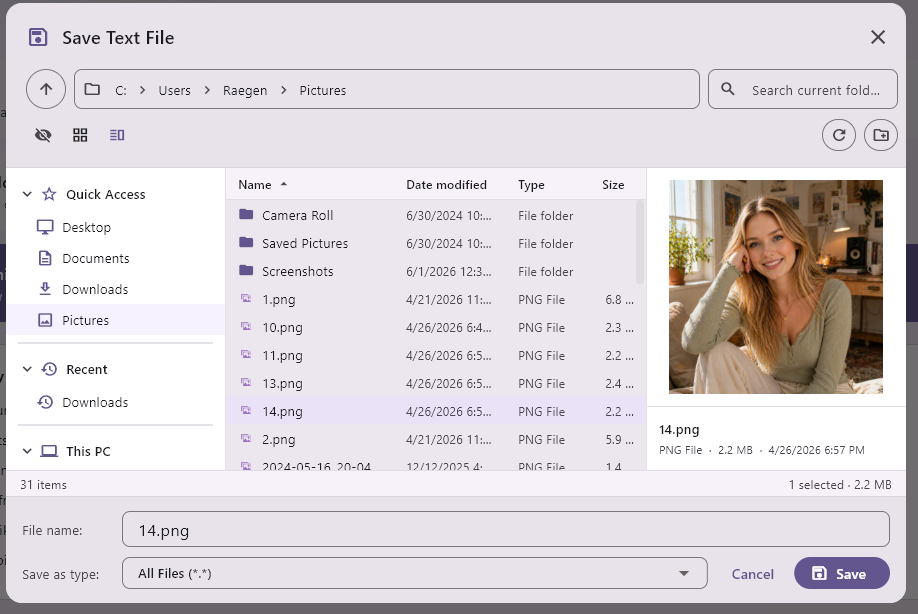
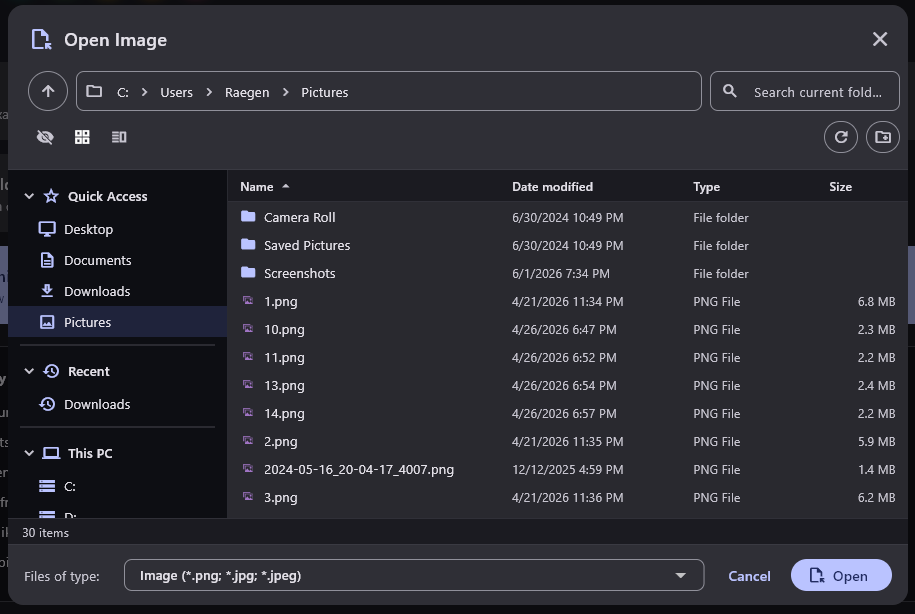
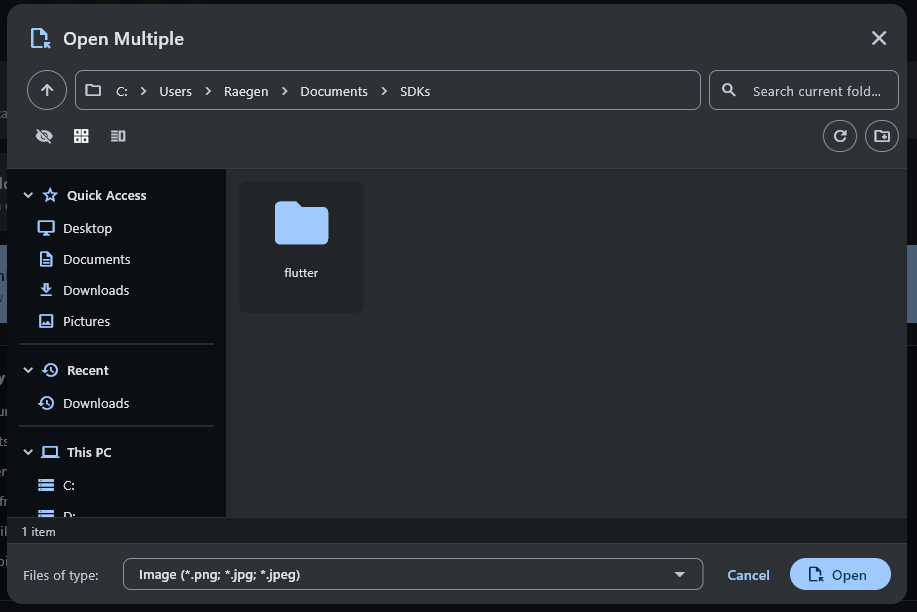
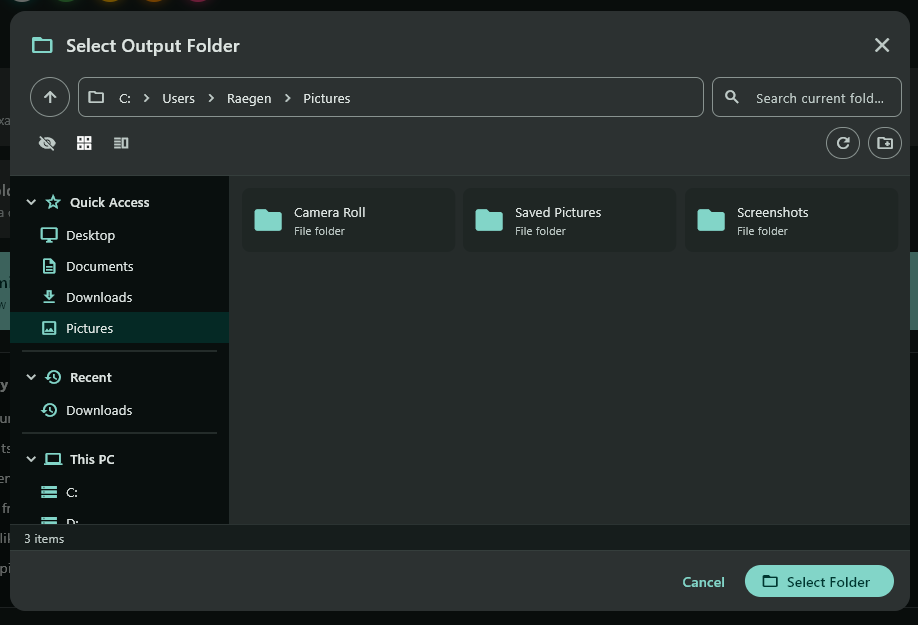
The same dialog across the four entry points, shown here in a dark theme. It picks up your app's ColorScheme, so it looks like the rest of your app, not a system dialog.
Why this exists
Most pickers hand off to the native OS dialog. That works until you want the picker to match your app's look, behave the same on every platform, or show things the native dialog will not. This one is an ordinary Flutter widget, so it reads your ThemeData (colors, light and dark) and you can change how it works.
It also avoids a specific problem. Native dialogs attach to the platform's main window, so if your app uses desktop_multi_window and you open a native picker from a secondary window, the main window jumps to the front. This picker lives in the widget tree, so that never happens. That edge case is where the package started, and it works as a general picker for any desktop app.
Install
Add it to your pubspec.yaml:
dependencies:
  flutter_file_explorer: ^0.2.2
Then import it:
import 'package:flutter_file_explorer/flutter_file_explorer.dart';Quick start
There are four entry points, all static methods on FileExplorer. Each takes a BuildContext and returns a Future that resolves to the chosen path, or null when the user cancels.
// Save a file (you provide the starting name)
final savePath = await FileExplorer.save(
  context,
  initialFileName: 'notes.txt',
  fileTypes: const [
    FileTypeFilter(label: 'Text file (*.txt)', extensions: ['txt']),
    FileTypeFilter(label: 'All files (*.*)', extensions: ['*']),
  ],
);

// Open one file
final openPath = await FileExplorer.open(
  context,
  fileTypes: const [
    FileTypeFilter(label: 'Images', extensions: ['png', 'jpg', 'jpeg']),
  ],
);

// Open several files
final paths = await FileExplorer.openMulti(context);

// Pick a folder
final dir = await FileExplorer.openDirectory(context);
save does not write anything by itself. It returns a path so you can write the file how you like:
final path = await FileExplorer.save(context, initialFileName: 'export.csv');
if (path != null) {
  await File(path).writeAsString(csv);
}
Methods
A null result always means the user cancelled.
| Method | Returns | Result |
|---|---|---|
FileExplorer.save | Future<String?> | Full path including the file name |
FileExplorer.open | Future<String?> | Path to one file |
FileExplorer.openMulti | Future<List<String>?> | Paths to the selected files |
FileExplorer.openDirectory | Future<String?> | Path to a folder |
Parameters
Every method takes context first. save also requires initialFileName. openDirectory does not take fileTypes or initialFileName. Everything else is optional.
| Parameter | Type | Default | What it does |
|---|---|---|---|
title | String | set per method | Header text. |
initialFileName | String | required on save | Name pre-filled in the save field. |
initialDirectory | String? | null | Folder to open first. Falls back to Downloads, then the home folder. |
fileTypes | List<FileTypeFilter>? | null | Groups for the type filter. On save, the first group's extension is added if you leave it off. |
quickLocations | List<QuickLocation>? | null | Replaces the default Quick Access entries in the sidebar. |
dismissable | bool | false | Let a click outside the dialog cancel it. |
showHiddenFiles | bool | false | Start with hidden files shown. There is a toolbar toggle either way. |
initialViewMode | FileExplorerViewMode | details | Starting layout: details, largeIcons, or tiles. |
iconBuilder | FileIconBuilder? | null | Draw your own row icons. See Custom icons. |
strings | FileExplorerStrings | English | Override any label. See Localization. |
FileTypeFilter
A labelled group of extensions for the filter dropdown. Use ['*'] to match everything.
const FileTypeFilter(label: 'Images', extensions: ['png', 'jpg', 'jpeg'])
const FileTypeFilter(label: 'All files (*.*)', extensions: ['*'])
QuickLocation
A sidebar shortcut to a folder. Pass a list of these as quickLocations to replace the default Quick Access entries.
const QuickLocation(
  label: 'Project',
  path: r'C:\work\project',
  icon: Icons.work_outline,
)
Theming
The dialog uses your app's Theme, so it picks up whatever ColorScheme you set on MaterialApp, light or dark. You do not pass colors to the picker. Set them on your app and the picker follows.
Custom icons
Pass an iconBuilder to draw your own icon for any row. Return null to keep the built-in icon for that entry.
await FileExplorer.open(
  context,
  iconBuilder: (context, entry) {
    if (entry.isDirectory) {
      return const Icon(Icons.folder_special, color: Colors.amber);
    }
    if (entry.extension == 'dart') {
      return const Icon(Icons.flutter_dash);
    }
    return null;
  },
);
entry is a FileExplorerEntry with path, name, isDirectory, and extension.
Localization
Labels default to English. Override the ones you need with FileExplorerStrings; every field has a sensible default, so you only set the ones you care about.
await FileExplorer.open(
  context,
  strings: const FileExplorerStrings(
    openButton: 'Öffnen',
    cancelButton: 'Abbrechen',
    searchHint: 'Ordner durchsuchen',
    quickAccess: 'Schnellzugriff',
    thisPc: 'Dieser PC',
  ),
);
What the dialog can do
- Details, large icons, and tiles layouts, with thumbnails for images in the icon and tile views.
- A preview pane for images, text files, and basic metadata.
- Search the current folder and its subfolders, with each result showing where it lives.
- Sort the details view by name, date, type, or size.
- A breadcrumb path bar, plus a typed mode that expands %USERPROFILE%, $HOME, and ~, and autocompletes folder names.
- Drag files in from the system file manager.
- Recent folders, remembered between runs.
- A hidden-files toggle. On Windows it reads the real Hidden and System attributes, not only names that start with a dot.
- Multi-select, new folder, and a prompt before overwriting on save.
- Keyboard support: Esc cancels, Backspace goes up a level, and typing jumps to a matching file.
Platform notes
- Quick Access comes from the system on Windows and falls back to Desktop, Documents, Downloads, and Pictures on other platforms.
- Drives and volumes: Windows scans
A:throughZ:, macOS lists/Volumes, and Linux lists mounts under/media/$USER,/run/media/$USER, and/mnt.
Run the example
A full demo lives in example/, with a theme switcher and a button for each mode.
cd example
flutter run -d windows   # or macos, or linux
Using this in production?
We build Flutter desktop apps for ambitious teams. If you want a hand wiring this in, or something custom, say hello.
Start a project